Add an "Update Data" Button to Tableau
How to add a "Update Data" Button to a Tableau Dashboard

One of the design-choices many BI-tool-vendors took is generally not to allow end-users to refresh data whenever they want - underlying data should be refreshed automatically in controlled iterations by the data engineers. That that is generally fine. Until it isn't.
In some cases you might want to allow end-users to refresh the data in a visual (dashboard or workbook or whatever) on demand, i.e. when the visual is used for operations, but real-time updates are too expensive. Hence, adding a "Update Data" button to a dashboard might come in handy.
How does such a button work?
The button and what it does has 4 components:
- frontend: the button itself
- embed: how the button is presented to an end-user
- pipeline: what processes are triggered when the button is clicked
- data: what data is refreshed by the pipeline
Each component's details depend on what systems you utilize, I'll elaborate on the systems I use here, but they are of course all replaceable by something else:
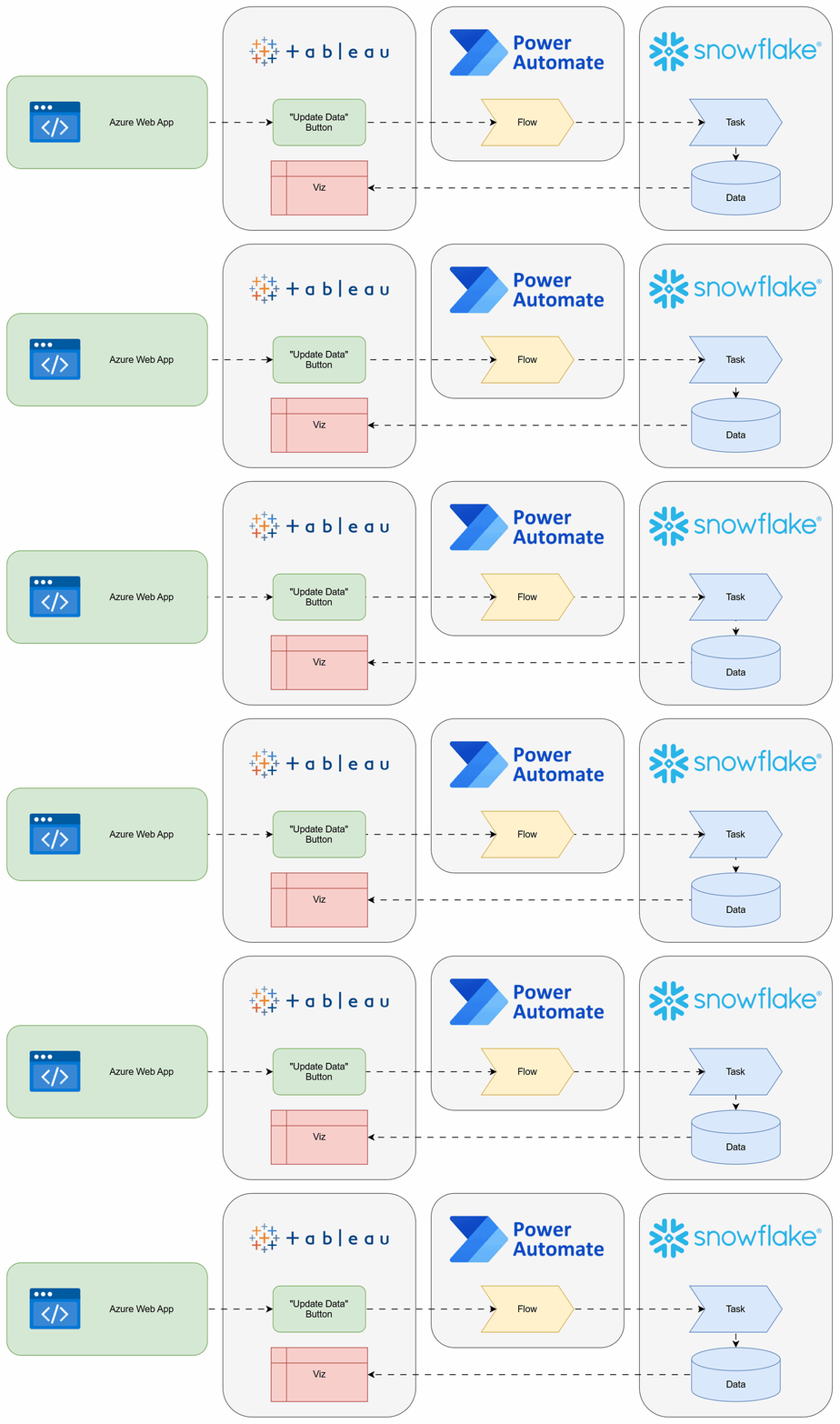
- frontend: the button itself is a web app hosted by Azure
- embed: it is embedded in a Tableau dashboard
- pipeline: it triggers a Power Automate flow, which in turn triggers a Snowflake task that goes through multiple processing steps
- data: the updated data lives in Snowflake, Tableau connects to it without extract - of course refreshing an extract could just as well be another step in the Snowflake task:
 Martin Seifert
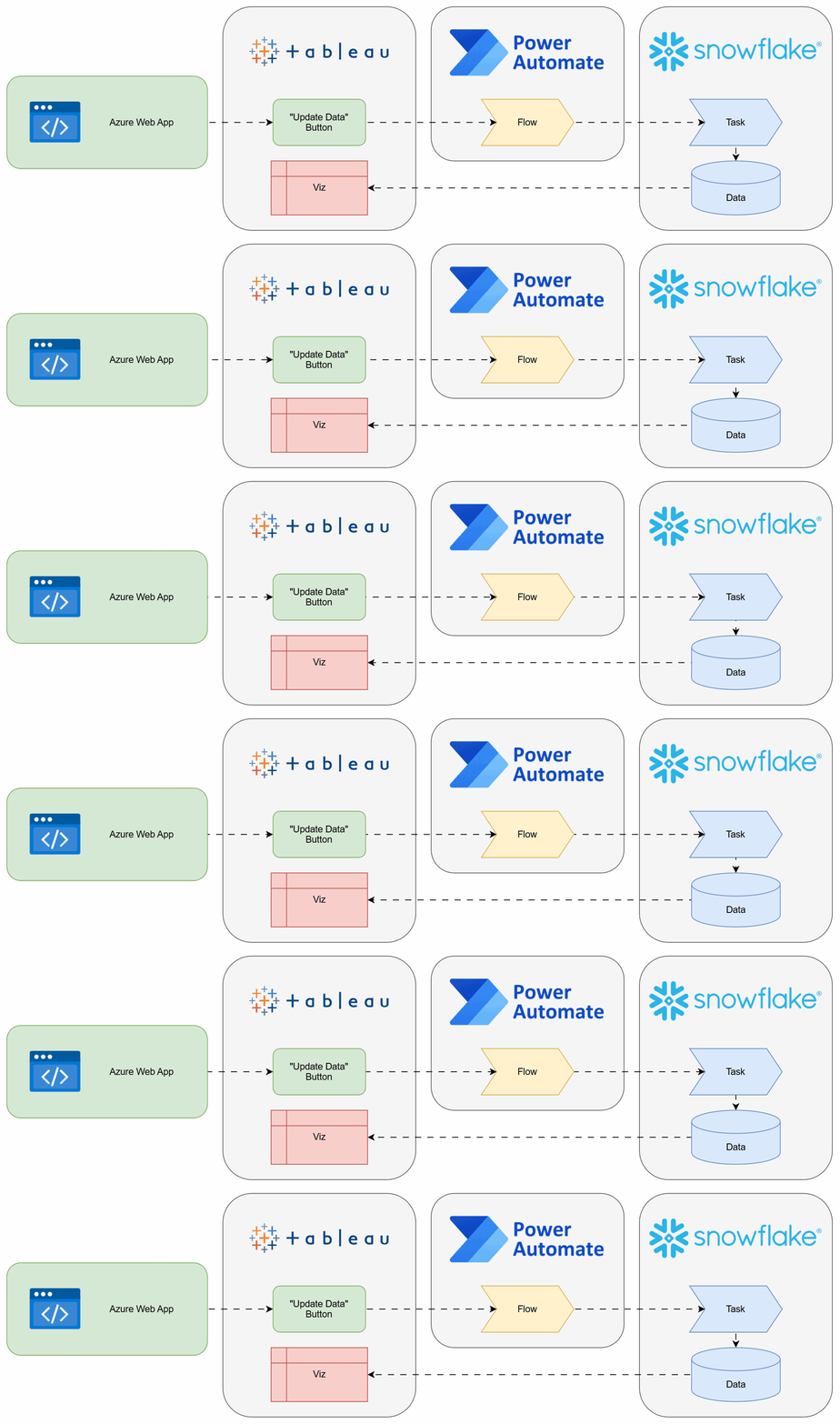
Combined, this is how the components interact across systems:
Frontend
Having the button itself being a web app is beneficial: It's (relatively) easy to create and cheap (if not free) to host.
Azure Web Apps have a free tier for static web apps (and the button is really static), unless you expect a looot of traffic on your button. Which you don't. If you do, such a button is not what you're looking for.
Of course you can host the web app wherever you want, but if you're on Azure anyway, a static web app is a (free and) reliable option. To create the web app, there are multiple options again. I found following this Quickstart guide useful:
 v1212
v1212
With this the web app is developed in VSCode and all changes are deployed to Azure using GitHub (CI/CD). Each web app created this way (though you might very well have multiple such button-apps hosted in the same statis web app) contains a .html (with the button code and the script triggered by the button) and a .css (for the styling of the button). The .html is rather simple:
<!DOCTYPE html>
<html lang="en">

<head>
  <meta charset="UTF-8">
  <meta name="viewport" content="width=device-width, initial-scale=1.0">
  <link rel="stylesheet" href="styles.css">
  <title>Refresh Data</title>
</head>

<body>
  <this_is_the_embedded_part>
    <h1>How to refresh data:</h1>
    <ol>
      <li>Click the button below</li>
      <li>Wait</li>
      <li>Refresh data in Tableau</li>
    </ol>
    <script>
    [...]
    </script>
    <button class="button" type="button" id="button" onClick="refreshData()">Update Data</button>
    <div id="spinner" class="hiddenSpinner" style="background-image: url('bean_eater.gif')"><img src='transparent.png'></div>
    <div id="statusdiv"></div>
  </this_is_the_embedded_part>
</body>

</html>
In addition to the button I also added a spinner becoming visible as soon as the button is clicked. You can create your own here: loading.io
The (just mildly - thanks to another useful guide) challenging part here is the JS script triggering the pipeline. This script sends a request to any endpoint you want. I chose Power Automate for two reasons:
- Per-user-license pricing: if you already have a license, the additional flow doesn't add any marginal cost
- Flexibility: when I want to change anything in the pipeline (e.g. replace the processing systems), I just modify the flow, not the web app
But the endpoint might just as well be the Snowflake REST API (or any other endpoint really) if you want your web app to handle the authentication, too. With a Power Automate endpoint, authorization to actually trigger the pipeline can be fairly granularly configured in Power Automate (e.g. using some token generated by the web app or IP restrictions). Technically the static web app will be exposed publicly and trigger another public Power Automate endpoint. Most certainly you want to add some security to either or both components to not allow just anyone to trigger your pipeline if they accidentally find your web app or the endpoint. I'll leave this part out here, just ask your favorite LLM for support 😜
async function refreshData() {
  const button = document.getElementById('button');
  button.disabled = true;

  const spinner = document.getElementById('spinner');
  spinner.setAttribute("class","visibleSpinner");

  const statusdiv = document.getElementById('statusdiv');
  var now = new Date();
  statusdiv.innerHTML = '(' + now.toTimeString().substring(0, 8) + ') Starting';

  // Send a POST request to the async Power Automate flow
  const response = await fetch('https://[...].powerplatform.com:443/powerautomate/automations/direct/workflows/[...]', {
    method: 'POST',
    headers: {
      'Content-Type': 'application/json',
    },
    body: null
  })

  // Get the location header from the response. This is the URL to check the flow's status.
  const statusUrl = response.headers.get('location');

  // Initialize flowStatus to an empty string
  let flowStatus = '';

  // Check the flow's status until it is no longer "Running"
  do {
    if (flowStatus !== '') {
      var now = new Date();
      statusdiv.innerHTML = '(' + now.toTimeString().substring(0, 8) + ') ' + flowStatus;
    }

    // Wait for 3 seconds before checking the status again
    await new Promise(resolve => setTimeout(resolve, 3000));

    // Get the flow's status
    let response = await fetch(statusUrl).then(response => response.json());

    // Assign the flow's status to the variable flowStatus using the ternary operator.
    flowStatus = (response?.properties?.status) ? response?.properties?.status : response.result;
  } while (flowStatus === 'Running');

  // Output the flow's final status and return it in text format
  button.disabled = false;
  spinner.setAttribute("class","hiddenSpinner");

  statusdiv.innerHTML = flowStatus;
}
Other than making the button a bit more appealing, the style sheet is also used to define the size of the button and the stuff around it embedded in Tableau:
* {
  font-family: Arial, Helvetica, sans-serif;
}

html, body {
  margin: 0;
  border: 0;
  padding: 0;
  background-color: #fff;
  display: flex;
  justify-content: center;
  align-items: center;
  height: 188px;
}

this_is_the_embedded_part {
  margin: auto;
  width: 136px;
  height: 200px;
  padding: 0px;
  font-size: 11px;
}

this_is_the_embedded_part > h1 {
  font-size: 11px;
}

this_is_the_embedded_part > ol {
  padding-left: 13px;
}

this_is_the_embedded_part > #spinner {
  margin: auto;
}

this_is_the_embedded_part > .hiddenSpinner {
  visibility: hidden;
  width: 50px;
  height: 4px;
}

this_is_the_embedded_part > .visibleSpinner {
  visibility: visible;
  width: 50px;
  height: 50px;
}

this_is_the_embedded_part > #statusdiv {
  width: 120px;
}

this_is_the_embedded_part > .button {
  background-color: #fbbb21;
  border: none;
  color: black;
  font-size: 11px;
  padding: 10px 10px;
  text-align: center;
  text-decoration: none;
  display: inline-block;
}

this_is_the_embedded_part > .button:disabled {
  background-color: #bcd5f0;
}
Embed
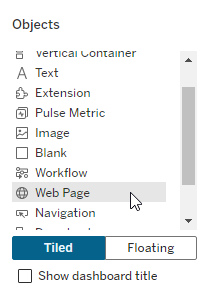
This is the easiest part in case of Tableau. If using a web app, it's literally embedded in a dashboard via drag-and-drop:
Pipeline
The pipeline to update the data has 2 sub-components:
- the endpoint receiving the request from the web app - in my example this is a Power Automate flow
- everything else required to refresh the underlying data, triggered by the endpoint
Part 1: Power Automate
A Power Automate flow is a really strong candidate to receive the request from the web app for another reason I didn't mention above already: It can respond asynchronously. While the flow runs, the web app keeps displaying the spinner and just after everything in the flow is done, the user (in Tableau) gets notified.
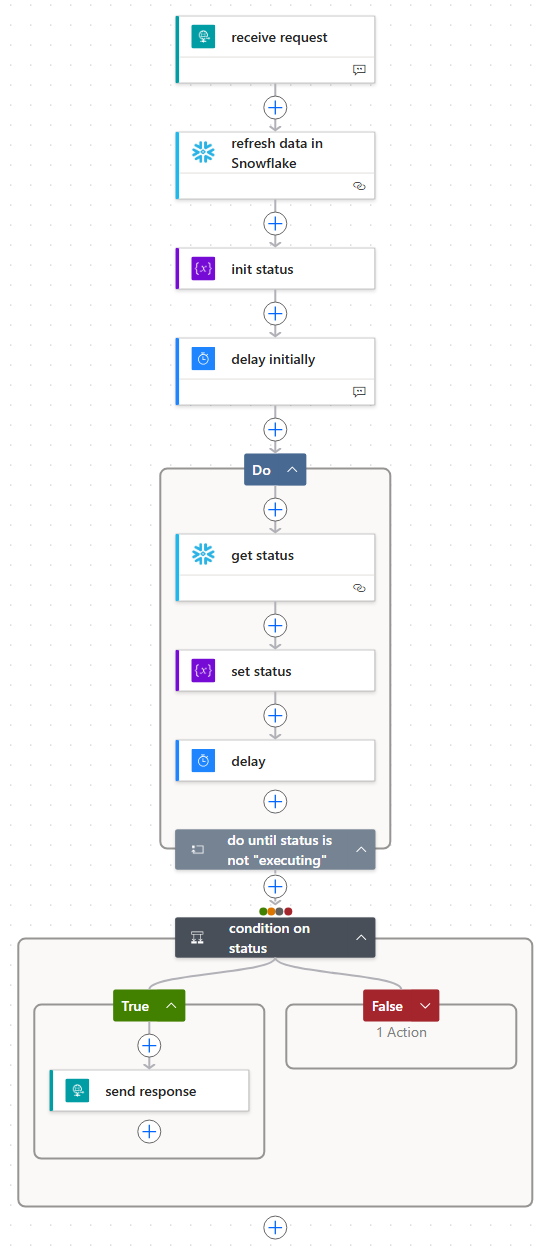
In my case I want to refresh data in Snowflake using a task (this could also be a dlt/dbt/Data Factory pipeline run). Power Automate simply triggers this task, waits for it to finish and responds. To enable using Power Automate with Snowflake, there are a few things to be configured. The challenging part here is the configuration of the authentication via Entra ID, but this guide and the community note below will help you:




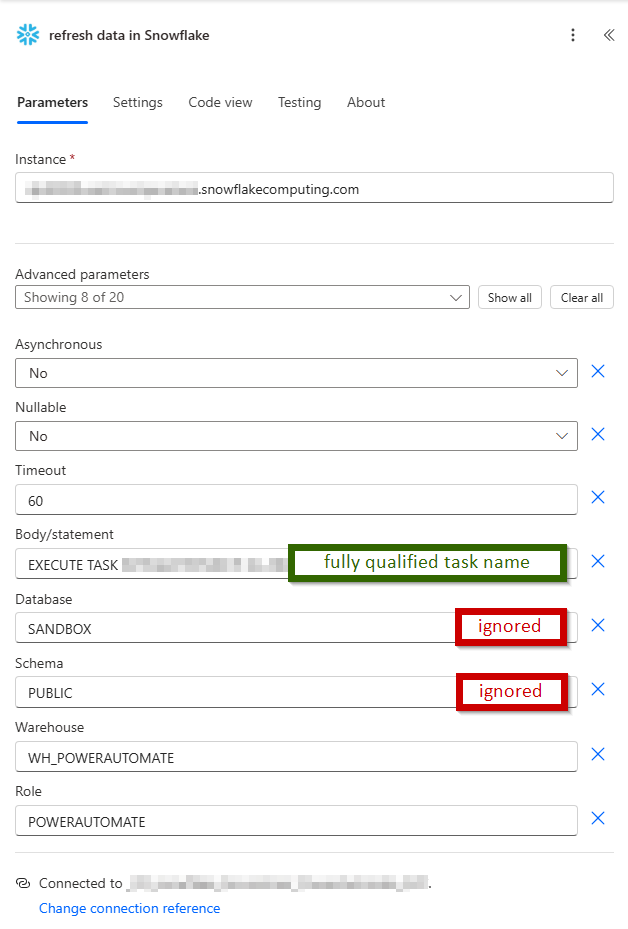
Inside the waiting loop, this is how to get the status of the task:
SELECT
    STATE,
    ERROR_MESSAGE
FROM TABLE(INFORMATION_SCHEMA.TASK_HISTORY(
        TASK_NAME => '[your task's name]',
        RESULT_LIMIT => 1
    ))
ORDER BY SCHEDULED_TIME DESC;
And the output of the action in Power Automate is then retrieved from string(outputs('get_status')?['body']?['Data'][0]?['STATE']).
Part 2: Snowflake
The Snowflake task can then really be anything, including Snowpark procedures. For example, you could trigger a Fivetran connection refresh, some procedure and refresh a Tableau extract:
create or replace task db.schema.ta_task
user_task_managed_initial_warehouse_size = 'XSMALL'
serverless_task_max_statement_size = 'XSMALL'
schedule = 'USING CRON 15 8 * * 1-5 Europe/Zurich'
allow_overlapping_execution = false
user_task_timeout_ms = 1800000 -- 30 minutes
task_auto_retry_attempts = 0
as
begin
    -- refresh raw data via fivetran
    call db.schema.p_refresh_fivetran_connection('[Fivetran connection ID from connection's setup]');

    -- refresh modeled data via snowflake
    call db.schema.p_process_raw_data();

    -- refresh tableau
    call db.schema.p_refresh_tableau_datasource('[Tableau label]');
end;
Or anything else, really. Thanks to Snowpark, the sky is the limit 🎈
Data
Now that the data in Snowflake or even in the Tableau extract is refreshed, the only missing piece is to refresh the Tableau dashboard. And this is the major downside of using an embedded web app over a Tableau extension: You can't force a refresh using a web app. But since the web app tells the user the data got refreshed, the user just has to click a button again. Not ideal, but still worth the convenience of a web app over an extension 😎

If you avoid this obstacle by replacing my web app approach with a custom Tableau extension, please reach out and let me copy it 😅